Managing Your Berrytap Profile and Account Settings
Update your display name, handle, avatar, and bio, manage invoices, switch communities, and delete your account when you're ready to leave.
Your Berrytap account is shared across every community you belong to. From a single place you can update how you appear to other members, review your payment history, and control account-level preferences. This page walks you through each of those settings.
Updating your profile
Navigate to Account → Settings → Profile to edit your public profile information. The following fields are available:
- Display name — the name other members see next to your posts and comments.
- Handle — your unique
@usernameused in your profile URL (see Your handle below). - Avatar photo — upload a square image to represent yourself across the platform.
- Bio — a short description of yourself, up to 500 characters.
- Social links — add links to your Twitter/X, Instagram, YouTube, and personal website.
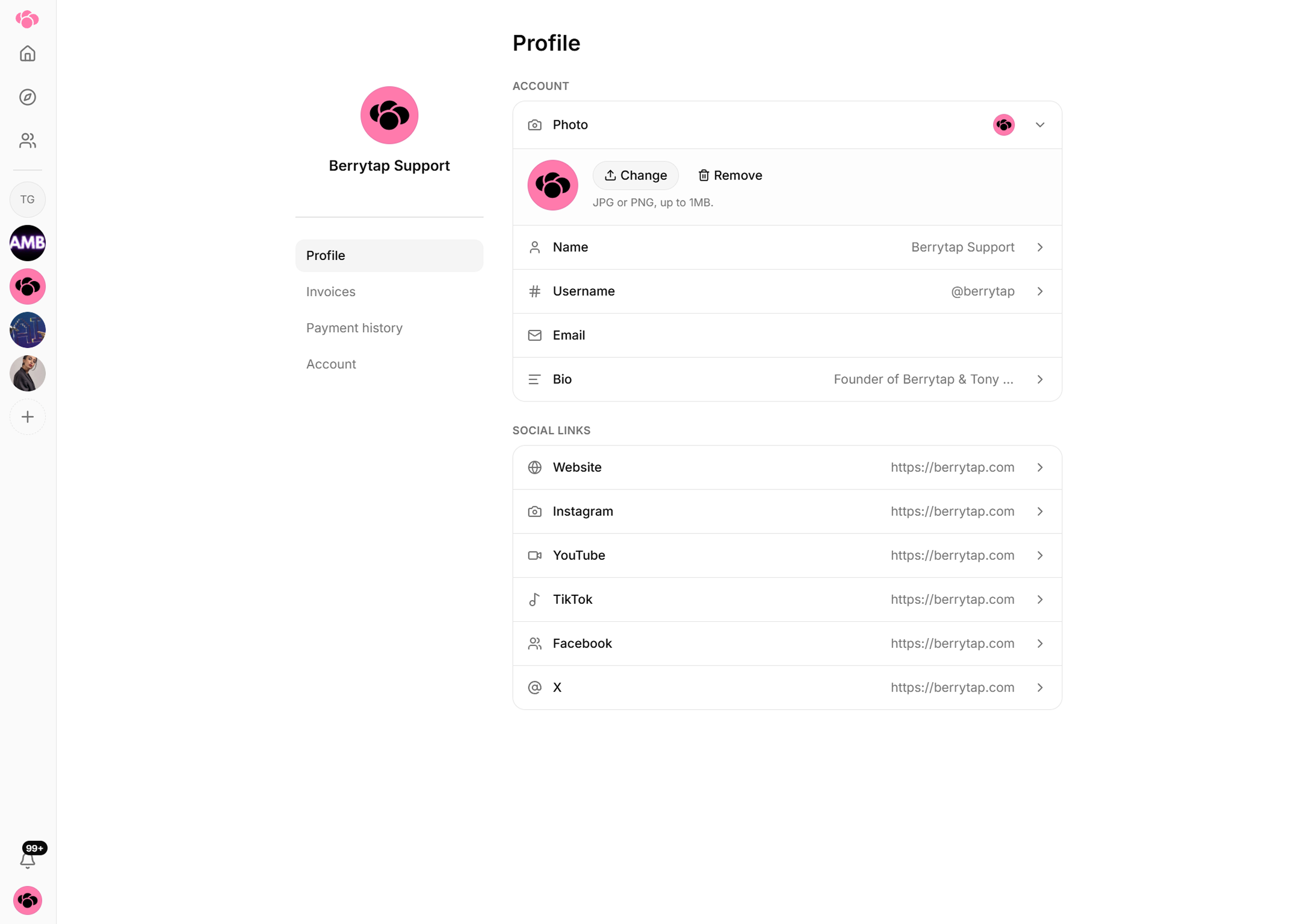
All changes take effect immediately and are reflected everywhere your profile appears across the platform.
Your handle
Your handle is your public @username — it appears in your profile URL and is how other members can mention or find you. Choose something recognizable, such as your creator brand name or the name you use on other platforms.
You can change your handle at any time from Account → Settings → Profile. Keep in mind that changing your handle updates your profile URL, so any existing links to your profile will stop working.
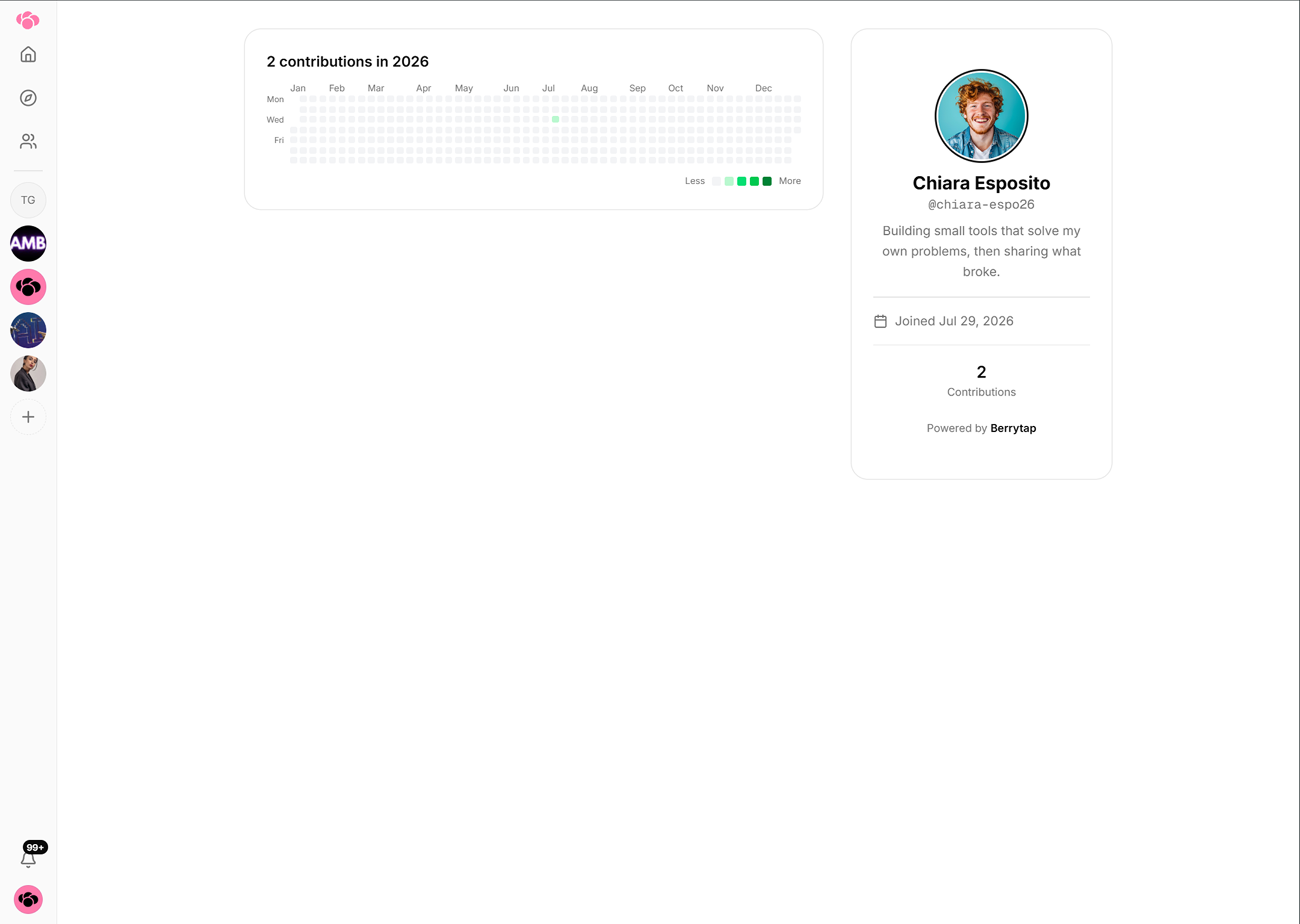
Pick a handle you intend to keep long-term. Every time you change it, your old profile URL breaks for anyone who has bookmarked or shared it.
Managing your invoices
Go to Account → Invoices to see a full history of every membership and course payment associated with your account. Each invoice entry shows:
| Field | Details |
|---|---|
| Community | The community or course the charge relates to |
| Amount | The total billed |
| Period | The billing period or purchase date |
| Status | pending, paid, or failed |
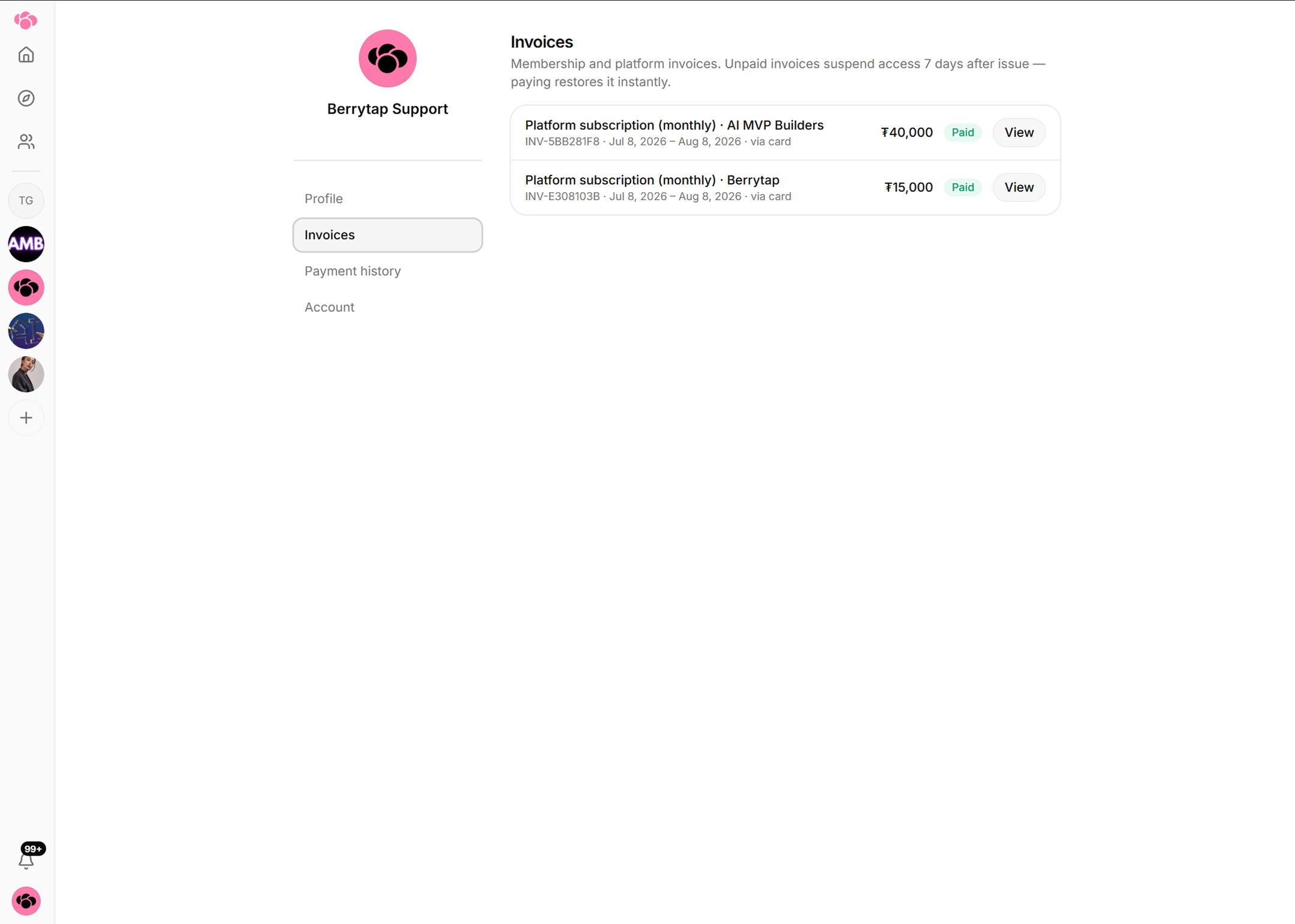
If an invoice shows a pending status, click it to open the payment flow and settle it directly. Paid and failed invoices are shown for reference only.
Switching communities
You can join and participate in multiple communities using the same Berrytap account — there's no need to create separate logins. To move between your communities, return to the home screen and select the community you want to switch to from your community list.
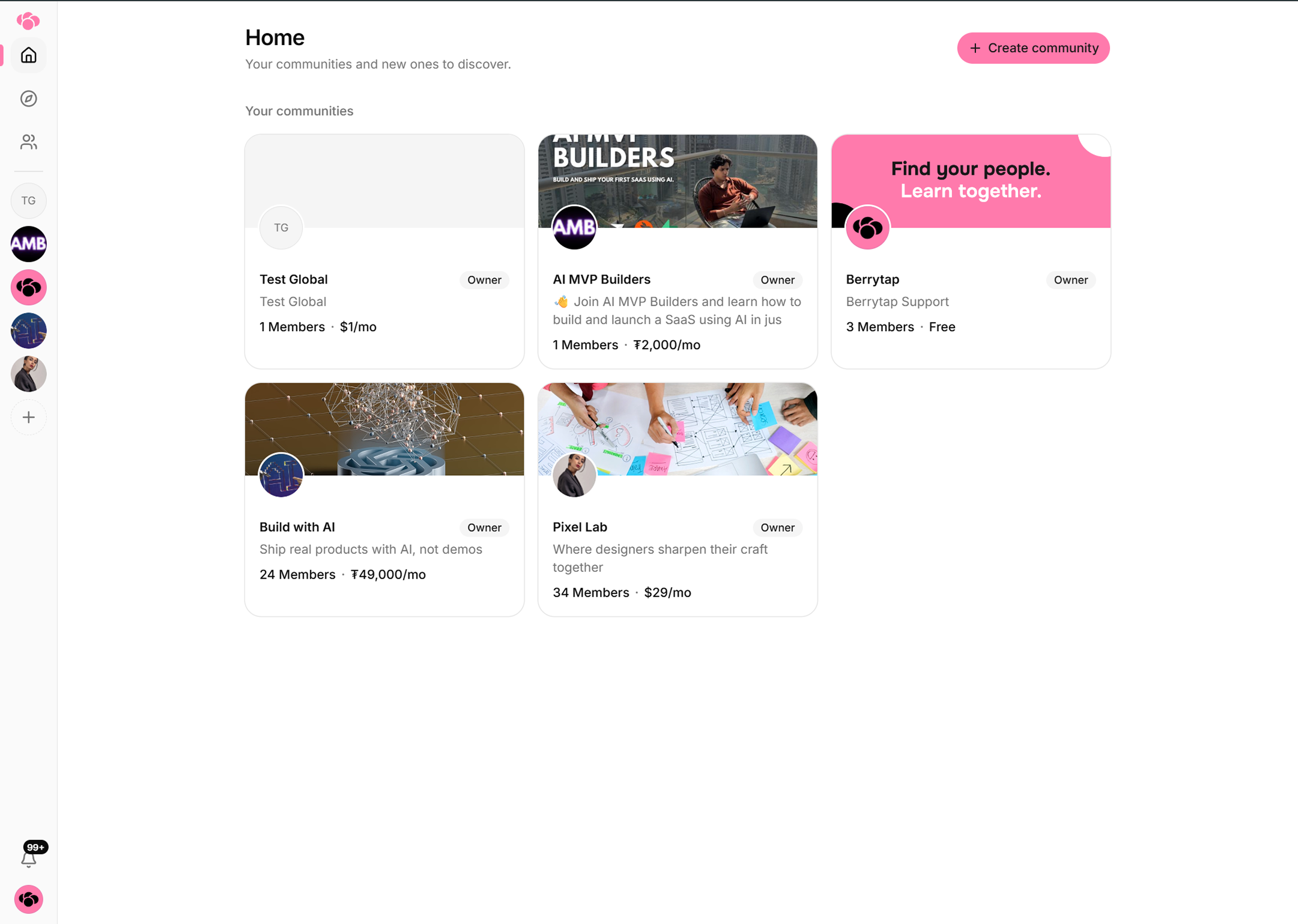
Your profile information (display name, handle, avatar, bio) is the same across all communities, while your membership level and activity are tracked separately per community.
Deleting your account
To permanently delete your account, go to Account → Settings → Danger Zone and follow the confirmation steps. Before deletion is allowed, both of the following conditions must be met:
- Your wallet balance is $0.00 (no funds owed to you).
- You have no pending payout requests awaiting processing.
If either condition is not met, resolve it first — request a payout to withdraw your wallet balance, then return to complete the deletion.
Berrytap cannot delete an account that holds an unpaid balance or a pending payout. If you have funds sitting in your wallet, request a payout and wait for it to be processed before attempting to delete your account. Skipping this step means those funds cannot be recovered after deletion.