Create Your Berrytap Community: Setup and Configuration
Learn how to create your Berrytap community, choose your pricing model, configure visibility, and customize your branding from the dashboard.
Starting a community on Berrytap takes just a few minutes. Once you finish the setup wizard, your community is live at its own URL — berrytap.com/c/your-slug — and ready to welcome members. Read through this guide before you begin so you can make informed choices, especially around your country selection and pricing model.
Click Create Community from your dashboard
Log in to Berrytap, then click the Create community button on your creator dashboard. This opens the community setup wizard.
Fill in your community details
Give your community its identity by filling in the following fields:
| Field | What to enter |
|---|---|
| Name | Your community's display name |
| Tagline | A short, punchy one-liner (shown in Discover and on your landing page) |
| Description | A few sentences about what members get when they join |
| Category | The topic that best describes your community |
| Cover image | A wide banner image (recommended 1500 × 500 px) |
| Community icon | A square logo or avatar (recommended 400 × 400 px) |
Choose your country
Select the country where you, the creator, are based. Your country determines which payment rail Berrytap uses to pay you out:
- Mongolia — QPay integration with MNT payouts (manual payout process)
- All other countries — Stripe Connect with USD self-serve payouts
Your country cannot be changed after you create your community. If you accidentally select the wrong country, you will need to create a new community. There is no migration path between payment rails.
Set your pricing model
Choose how members pay to join:
Free
Anyone can join at no cost. Great for growing an audience before monetizing. Note that free communities are capped at 25 active members on the Free plan.
Subscription
Members pay a recurring fee to stay in the community. Set your monthly price, then optionally enable yearly billing — members who pay annually get two months free. You can update the price later; existing subscribers keep their current rate until they re-subscribe.
One-time payment
Members pay once and keep lifetime access. Ideal for cohort-based courses or communities with a fixed curriculum.
Your community is created — share the link
After completing the wizard, your community is live in Unlisted visibility by default. It won't appear in Discover yet, but anyone with your direct link (berrytap.com/c/your-slug) can find it. Share the link with your existing audience to start inviting your first members.
Community visibility
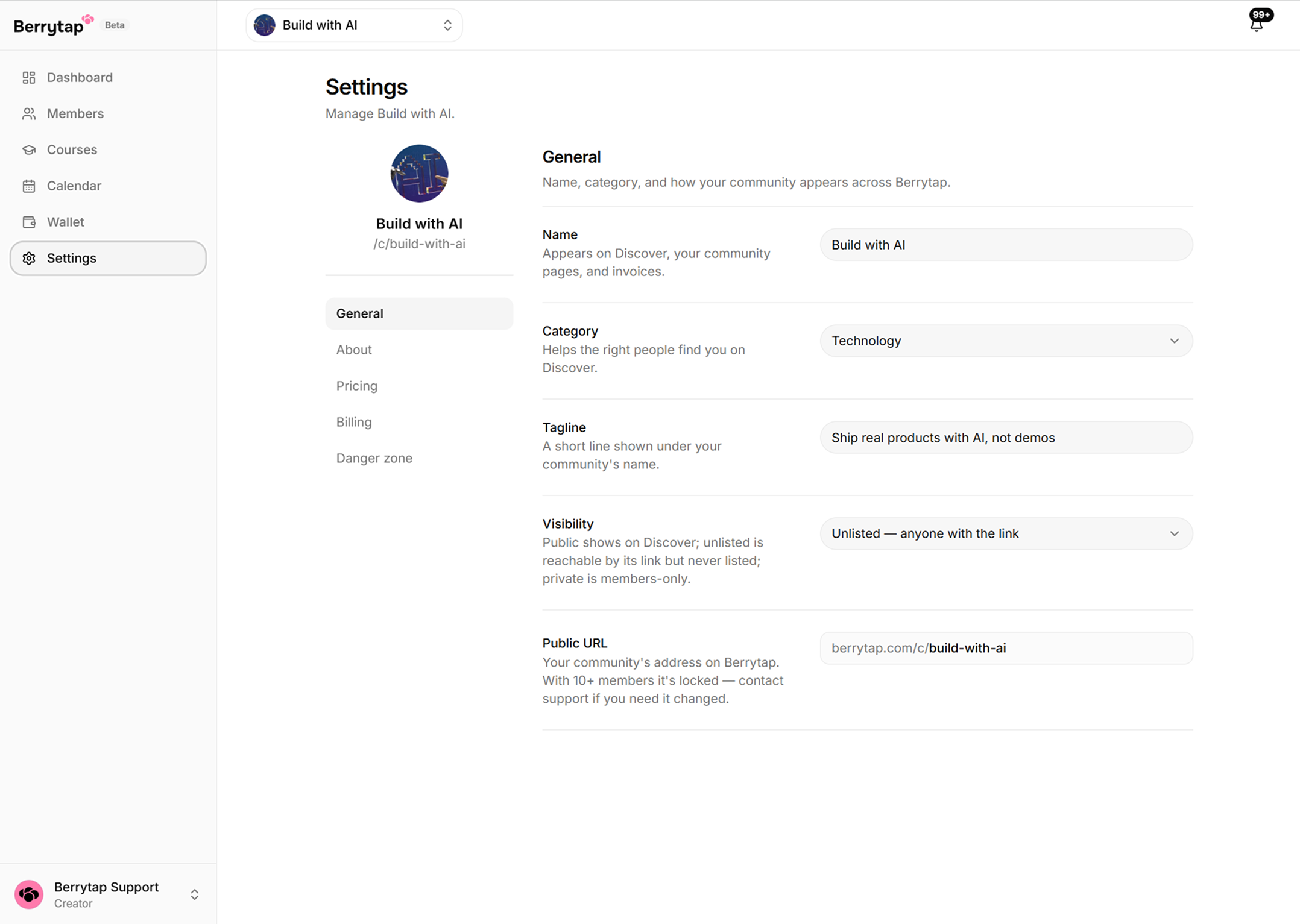
You can control who can find and view your community. Navigate to Dashboard → Settings → General to change your visibility setting at any time.
| Visibility | Who can see it | Listed in Discover? |
|---|---|---|
| Public | Anyone | ✅ Yes (Growth & Scale plans only) |
| Unlisted | Anyone with the direct link | ❌ No |
| Private | You and active members only | ❌ No |
- Public is the best choice once you're ready to grow organically through Berrytap's Discover feed. This option is available on Growth and Scale plans.
- Unlisted (the default) lets you share your link freely without being listed publicly. Perfect for soft launches and existing audiences.
- Private locks down your community completely — only you and members with an active subscription or one-time purchase can see it.
Free communities never appear in Discover, regardless of your visibility setting. To be listed in Discover, you must be on a Growth or Scale plan and set your visibility to Public.
Customizing your community
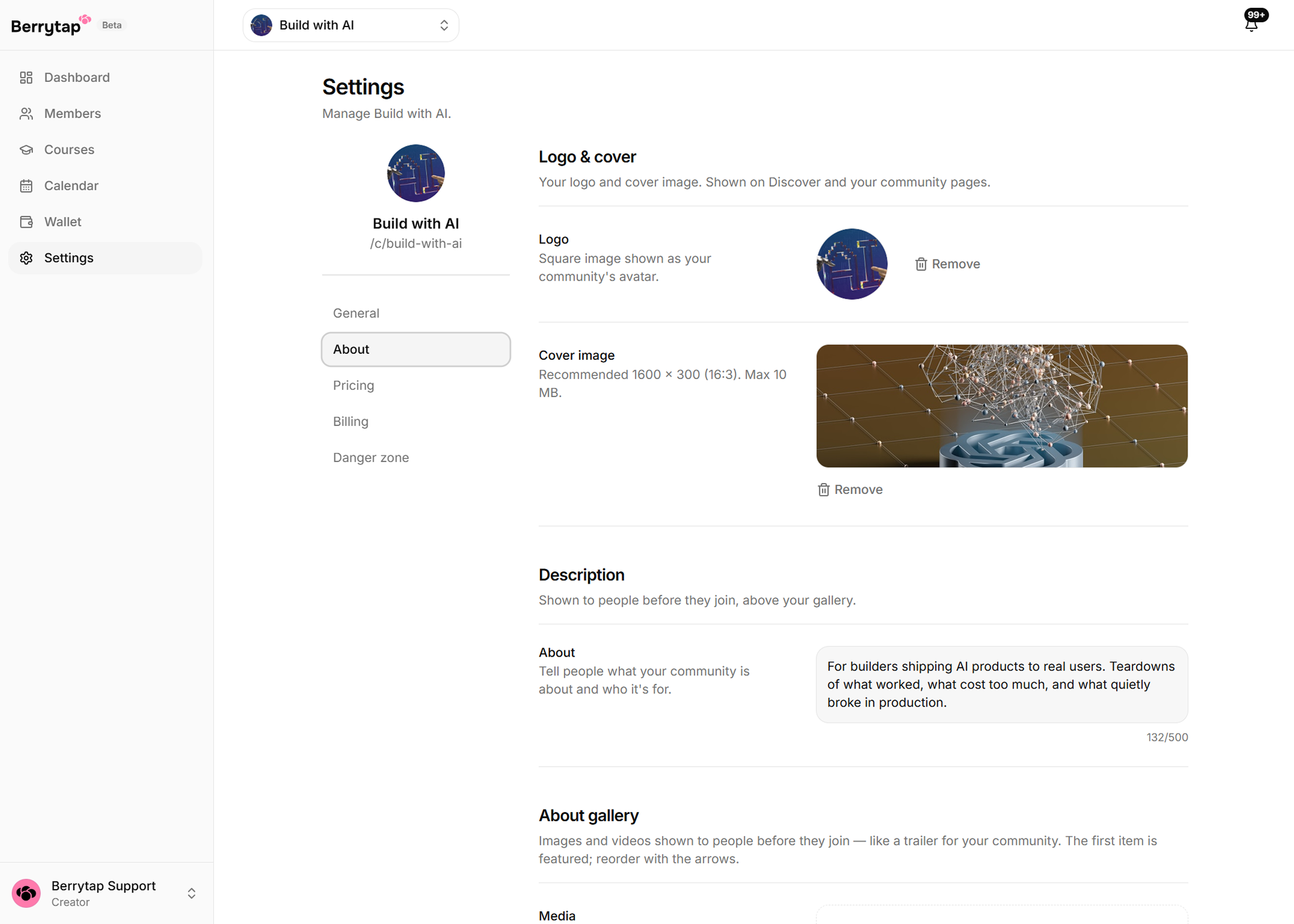
You can update your community's look and feel at any time from Dashboard → Settings → Branding.
- Cover image — The wide banner displayed at the top of your community page.
- Icon — The square logo shown in Discover listings, member notifications, and browser tabs.
- About section — A richer description rendered on your community landing page. Supports basic formatting.
- Category — Helps Berrytap surface your community to the right people in Discover.
This is what members then see on the community's About page:
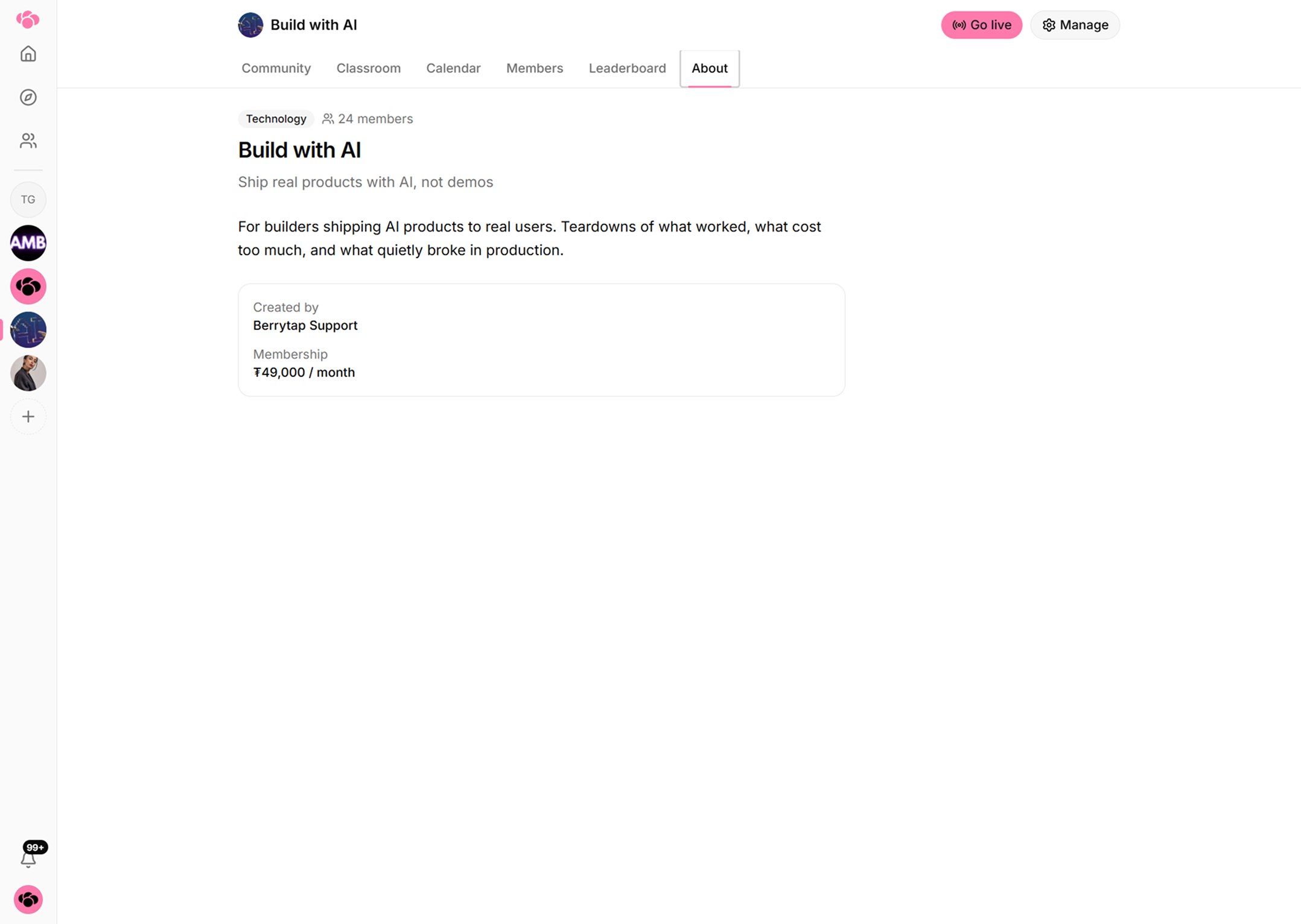
Changes to branding take effect immediately for all visitors.