Account Security and Two-Factor Authentication (2FA)
Learn how to sign in, reset your password, enable TOTP-based 2FA, and understand when two-factor authentication is required on Berrytap.
Keeping your account secure protects both your content and your earnings. Berrytap supports email/password login and Google OAuth, and offers optional two-factor authentication (2FA) for everyday use. However, 2FA becomes required the moment you interact with financial features such as payouts or bank account updates — so setting it up in advance saves you friction later.
Signing in
You can sign in to Berrytap with either of the following methods:
- Email and password — enter the email address and password you used when you signed up.
- Google — click Continue with Google to authenticate via your Google account.
If you registered with an email and password, you can also link your Google account from Account → Settings → Security so that both methods work for you going forward.
Email verification is required for all new email-based accounts. After you sign up, check your inbox for a verification email and click the link inside before you can access the platform.
Password reset
If you forget your password, you can reset it from the login page.
Click Forgot Password
On the login page, click the Forgot Password? link below the sign-in form.
Enter your email address
Type in the email address associated with your account and submit the form.
Check your inbox
Open the password reset email from Berrytap. The link inside is valid for a short time, so act promptly.
Set a new password
Click the link, enter your new password, and confirm it. You'll be signed in automatically once the reset is complete.
Enabling two-factor authentication (2FA)
2FA adds a second layer of verification to your account by requiring a time-based one-time code from an authenticator app in addition to your password.
Open Security settings
Go to Account → Settings → Security.
Click Enable 2FA
Click the Enable 2FA button to begin the setup flow.
Scan the QR code
Open your authenticator app (such as Google Authenticator, Authy, or 1Password) and scan the QR code displayed on screen. This links the app to your Berrytap account.
Enter the confirmation code
Type the 6-digit code your authenticator app shows and submit it to verify the pairing was successful.
Save your backup codes
Berrytap generates a set of single-use backup codes immediately after enrollment. Copy them and store them somewhere safe offline — a printed sheet, a secure note, or a password manager. These codes are the only way to regain access if you ever lose your authenticator app.
Many modern password managers — such as 1Password, Bitwarden, and iCloud Keychain — support TOTP codes natively. You can store your Berrytap TOTP secret directly in your password manager instead of using a separate authenticator app, reducing the risk of losing access to your codes if you change devices.
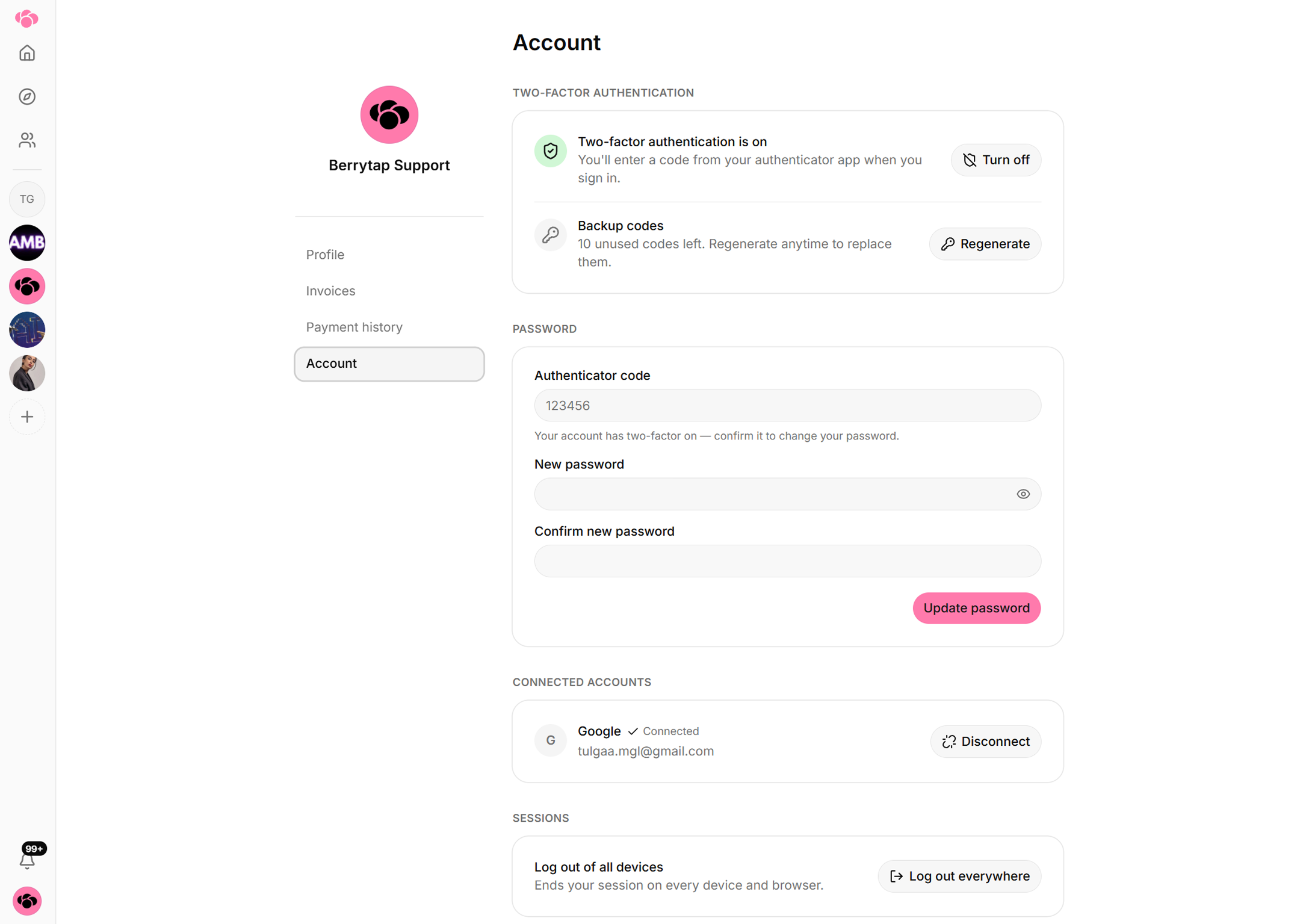
Backup codes
When you enroll in 2FA, Berrytap generates a set of backup codes tied to your account. Keep the following in mind:
- Each code can only be used once. After you use a code, it is invalidated.
- Store your codes offline — in a printed document or an encrypted note — not in the same app or device you use for authentication.
- If you lose access to your authenticator app and have no remaining backup codes, contact Berrytap support. Recovery will require identity verification and may take time.
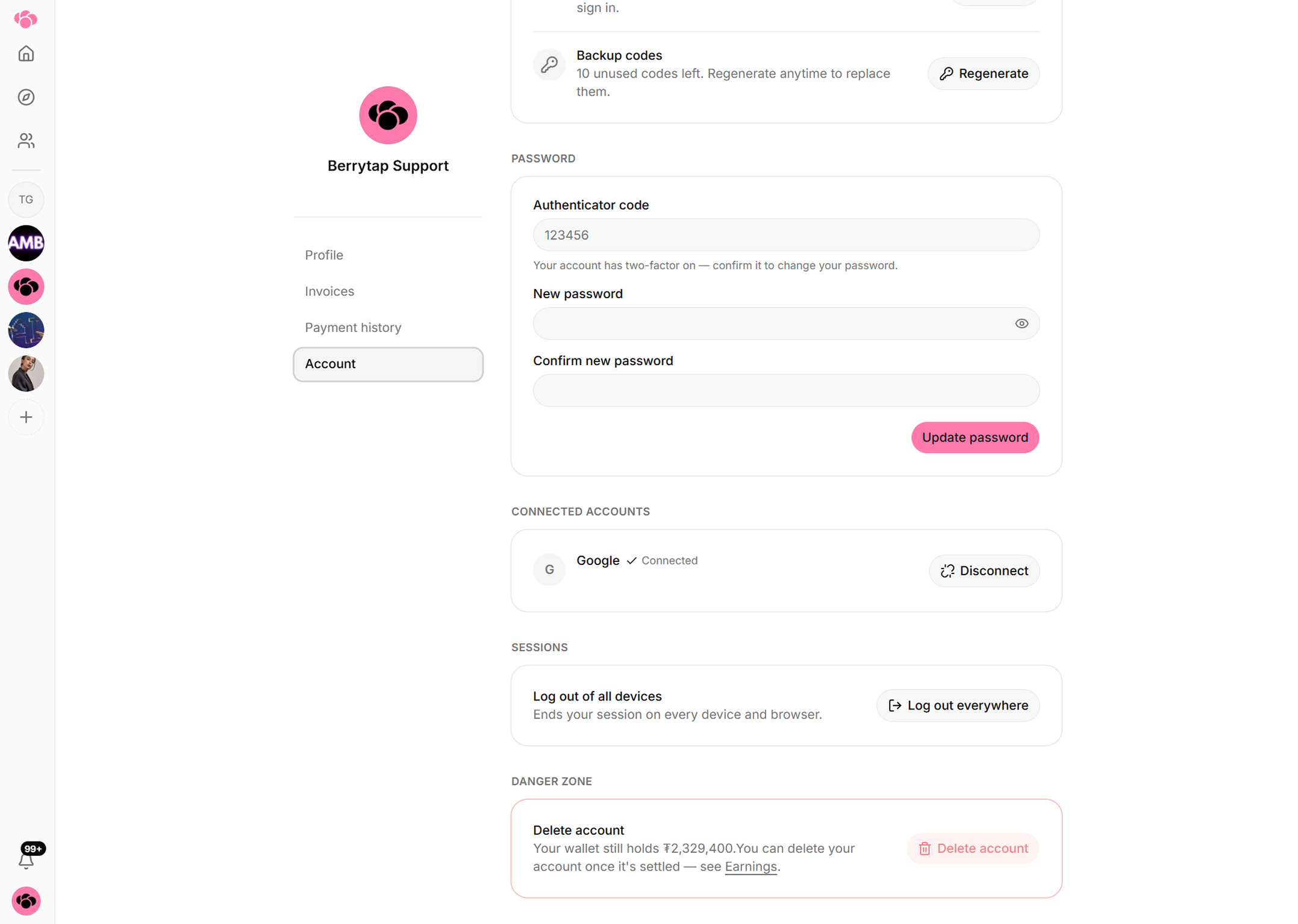
When 2FA is required
2FA is optional for general browsing, posting, and community participation. It becomes required automatically when you attempt any of the following actions:
| Action | 2FA required? |
|---|---|
| Browsing and posting | No |
| Requesting a payout | Yes |
| Updating your payout bank account | Yes |
When you attempt a protected action, Berrytap automatically prompts you to complete the 2FA challenge. You do not need to enable a special mode — just have your authenticator app ready.
Disabling 2FA
To turn off 2FA, go to Account → Settings → Security and click Disable 2FA. You'll be asked to confirm the action.
Disabling 2FA will immediately block you from requesting payouts and updating your payout bank account until you re-enable it. If you lose your authenticator device without having saved your backup codes, you will be locked out of all payout features. Store your backup codes in a safe, offline location before you find yourself in that situation.