Creating and Managing Events on the Community Calendar
Learn how to create calendar events, collect member RSVPs, and keep your community informed about upcoming sessions, launches, and live gatherings.
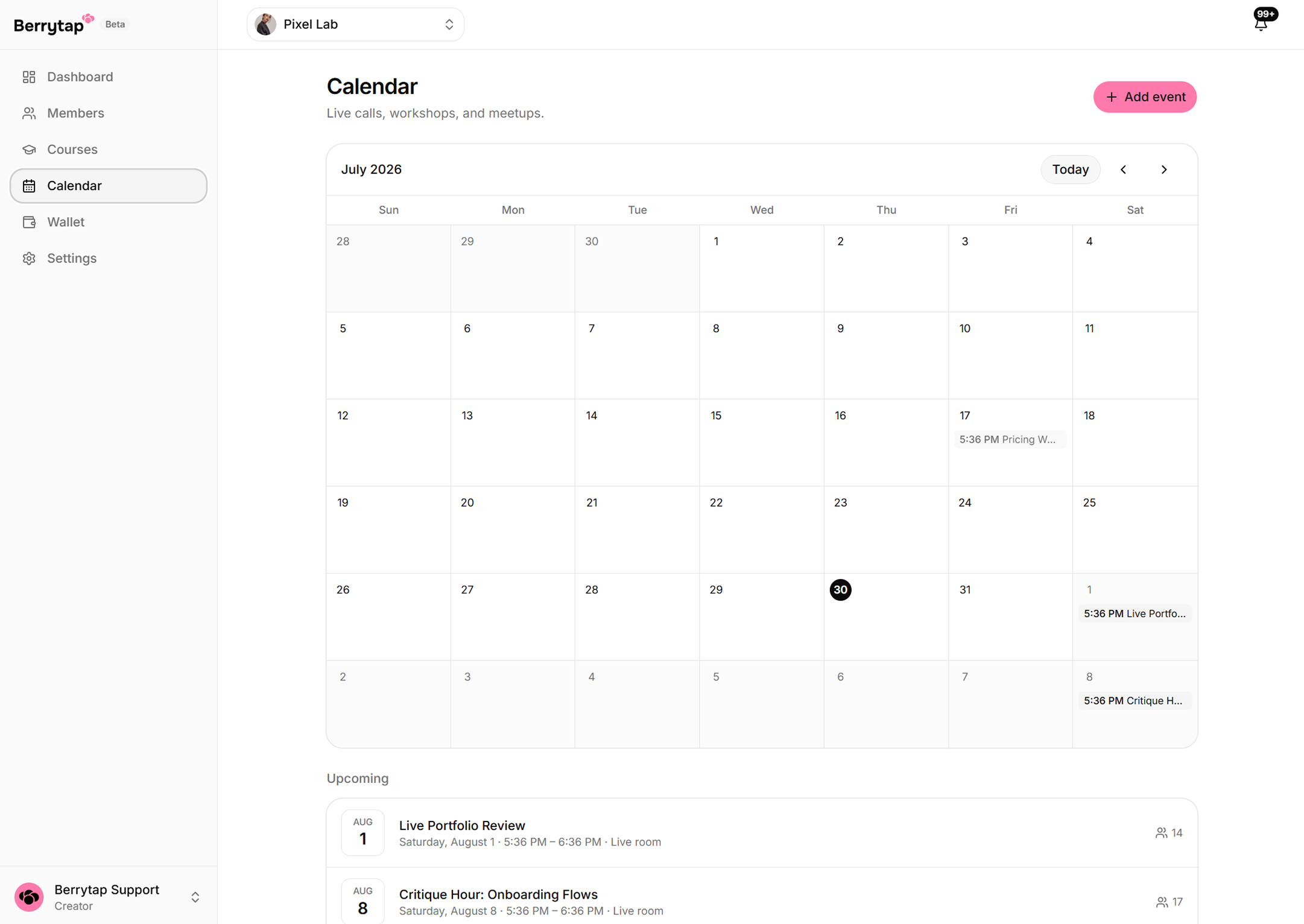
The Berrytap calendar keeps your community on the same schedule. As a creator, you can publish events directly to your community's calendar and automatically notify every member. Members can RSVP with a single tap, and you always have a clear view of who's planning to attend. Events are a simple but effective way to build rhythm, anticipation, and accountability in your community.
Creating an event
-
Go to Dashboard → Calendar.
-
Click Create event.
-
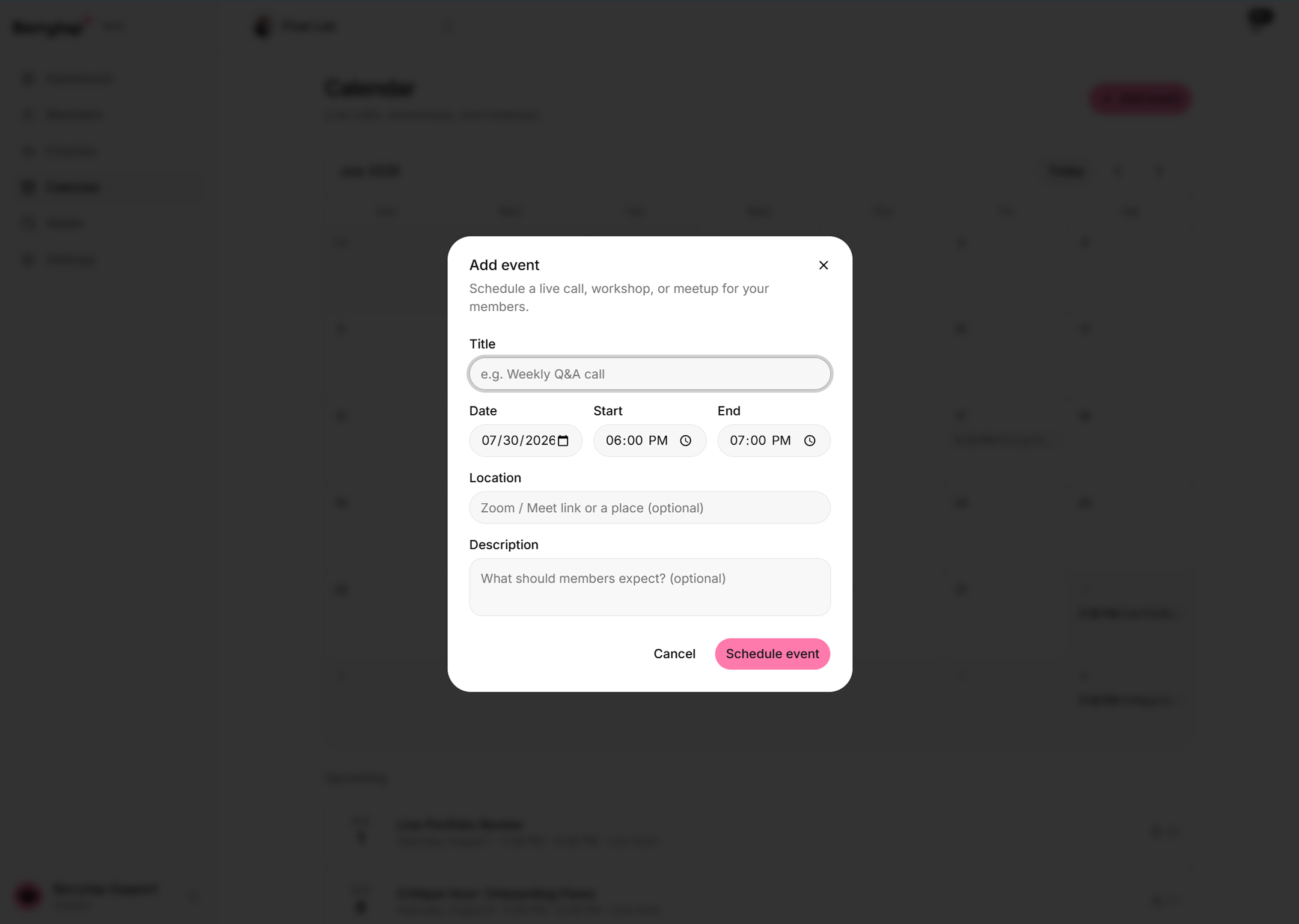
Fill in the event details:
Field What to enter Title A clear, descriptive name for the event (e.g., "Weekly Q&A — Ask Me Anything") Date and time The start date and time; optionally add an end time Description Agenda, joining instructions, links, or anything members need to know in advance -
Click Publish. The event is immediately added to the community calendar and a notification is sent to all active members.
You can edit or delete an event after publishing. Members who have already RSVP'd receive a notification if you change the date or time.
Member RSVPs
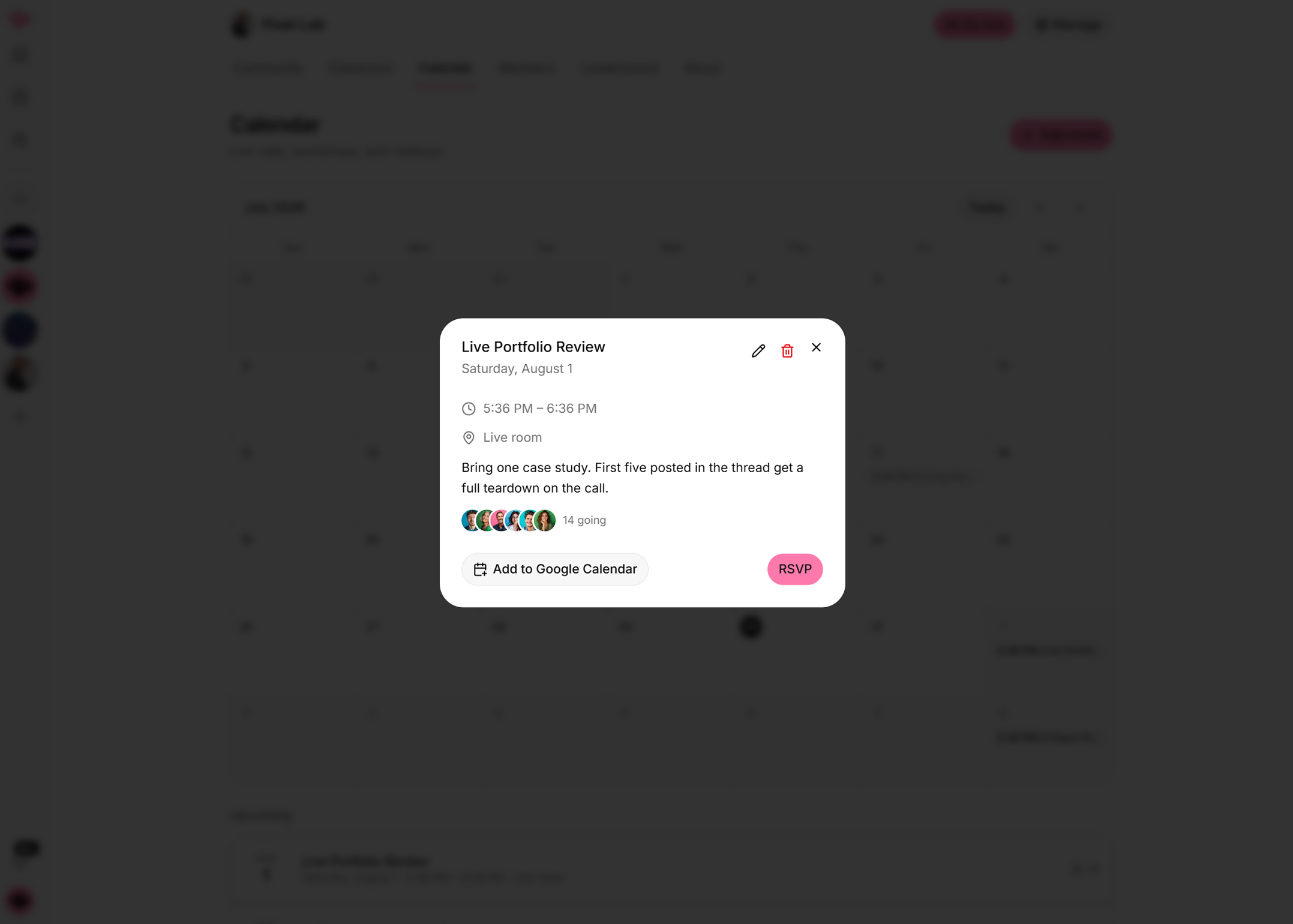
Members can RSVP to any upcoming event directly from the community calendar.
- Members tap Going on the event card to confirm attendance.
- To cancel their RSVP, they tap Going again to toggle it off.
- As the creator, open the event detail view to see the full list of members who have RSVP'd. This is useful for planning session size, sending pre-event resources, or following up afterward.
Calendar view
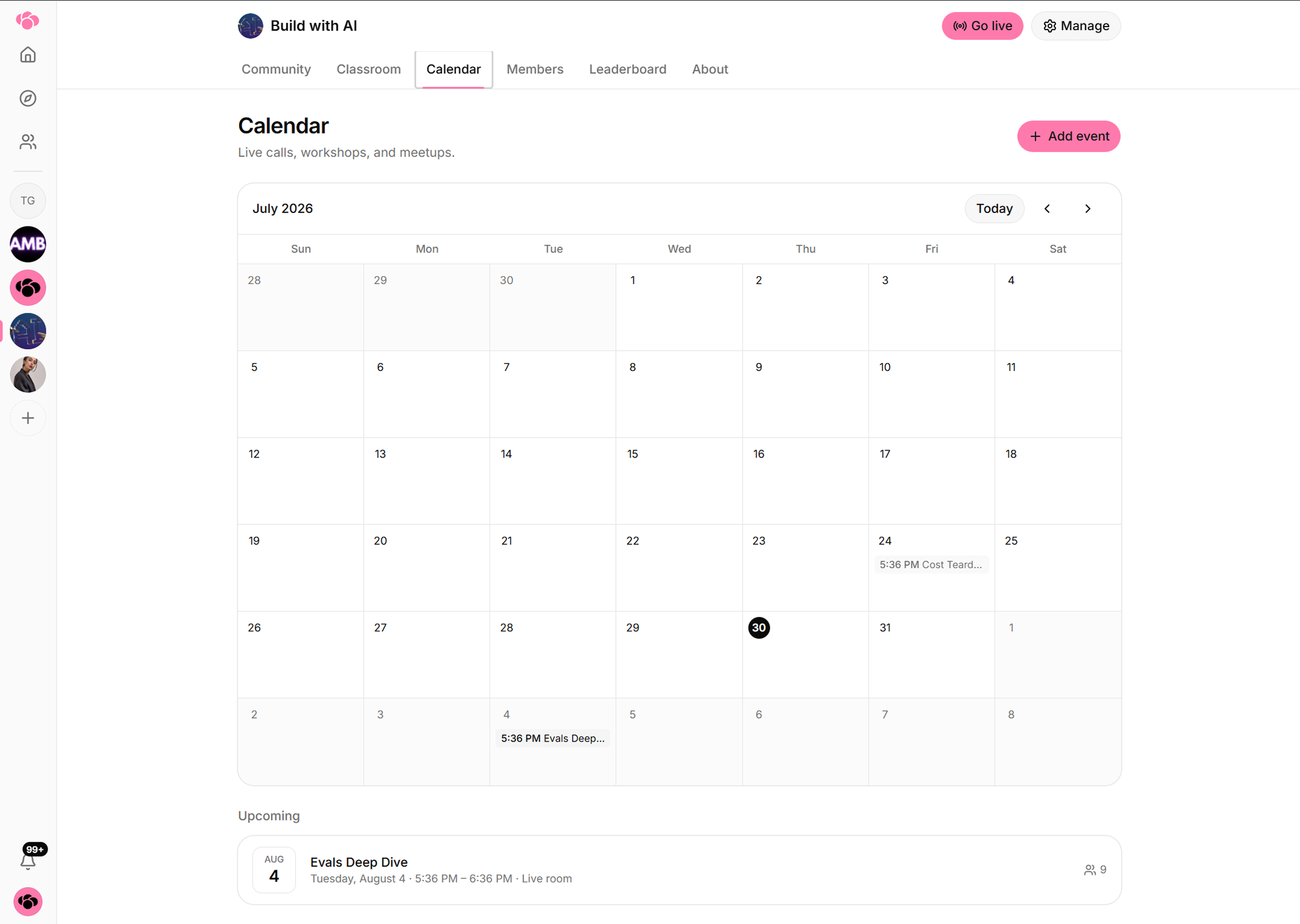
Members access the community calendar from the community sidebar — no extra navigation needed.
- The calendar shows all upcoming events in chronological order.
- Past events are archived and no longer shown by default.
- Tapping any event opens the detail view with the full description and RSVP button.
Schedule events consistently — a weekly Q&A or monthly challenge kickoff — to give members a reason to keep coming back. Pin a post to the feed the day before each event as a reminder and conversation starter.