Using the Community Feed: Posts, Polls, and Reactions
Discover how to create posts, run polls, react to content, pin announcements, and moderate your Berrytap community feed effectively.
The community feed is the heartbeat of your Berrytap community — it's where members share updates, ask questions, celebrate wins, and connect with each other. As a creator, you control the tone through pinned posts and moderation tools. As a member, every reaction and comment you leave helps build the community and earns you points toward the leaderboard.
Posting
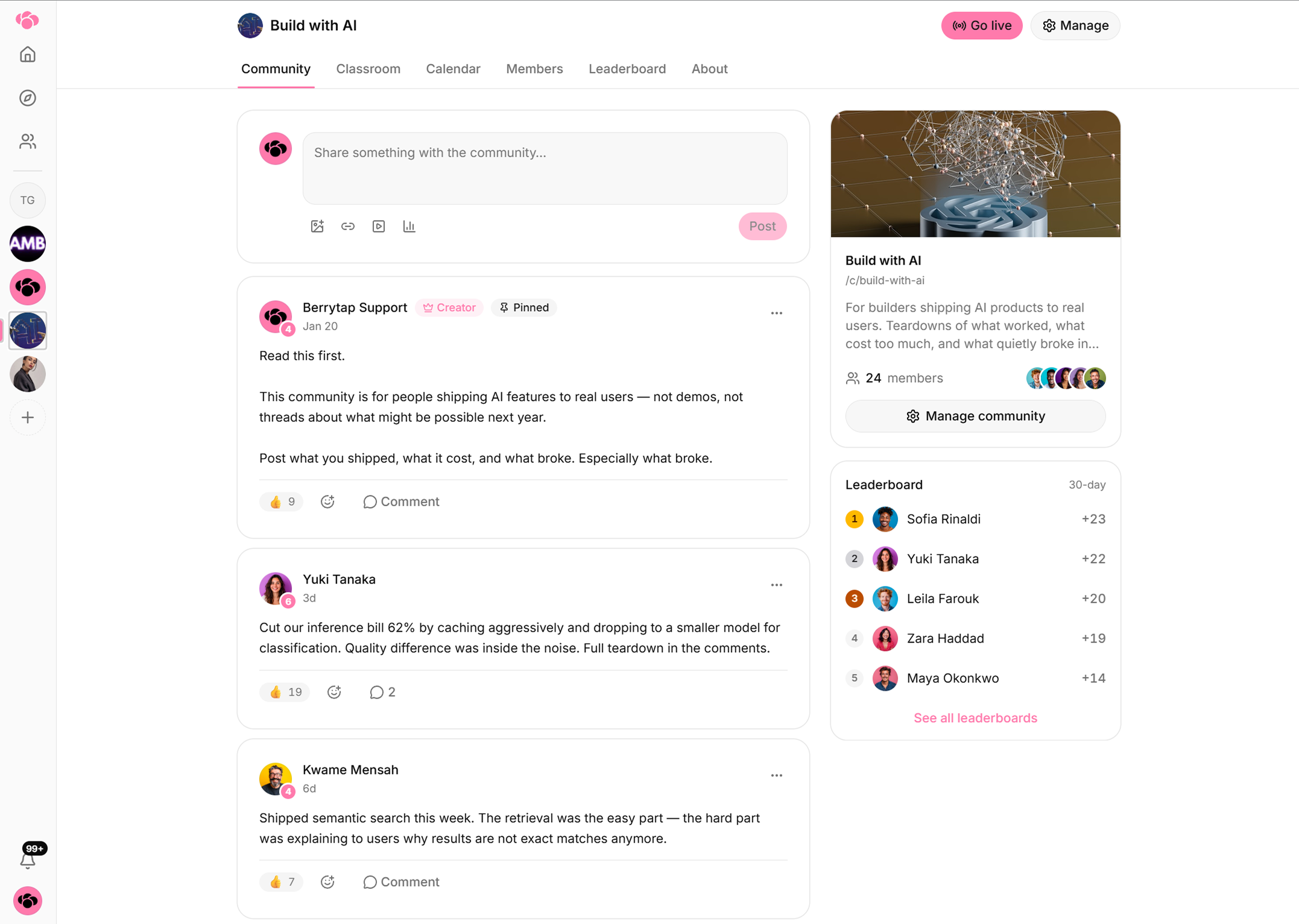
To create a post, click the New Post button at the top of the feed.
- Rich text formatting — Bold, italicize, and add hyperlinks to your text using the formatting toolbar.
- Images — Attach up to 5 images per post. Supported formats include JPG, PNG, and GIF.
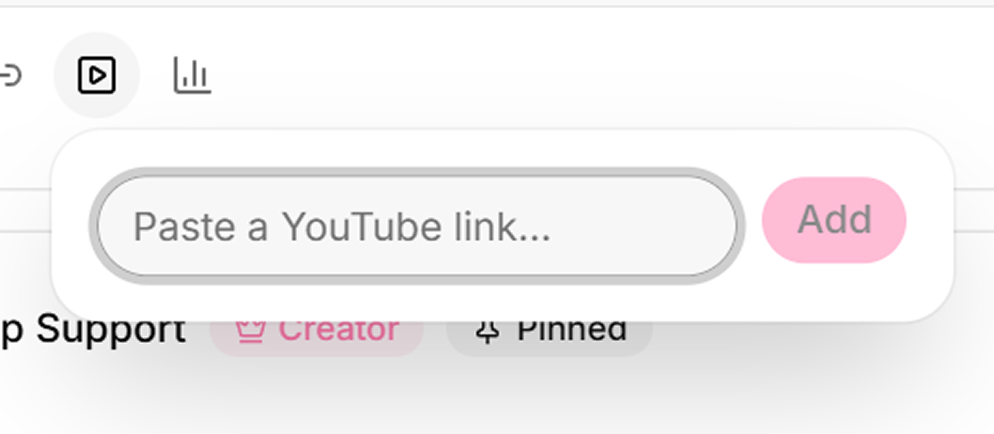
- Video embeds — Paste a YouTube or Vimeo URL directly into your post body and it will embed as a playable video.
- Link previews — Paste any other URL and Berrytap automatically generates a preview card with the page title, description, and thumbnail.
Your post goes live immediately and appears at the top of the feed for all community members.
Comments and reactions
Members can engage with any post through comments and emoji reactions.
- Threaded comments — Replies are nested one level deep. You can reply to a post, and others can reply to your comment — but comments don't nest further than that, keeping conversations easy to follow.
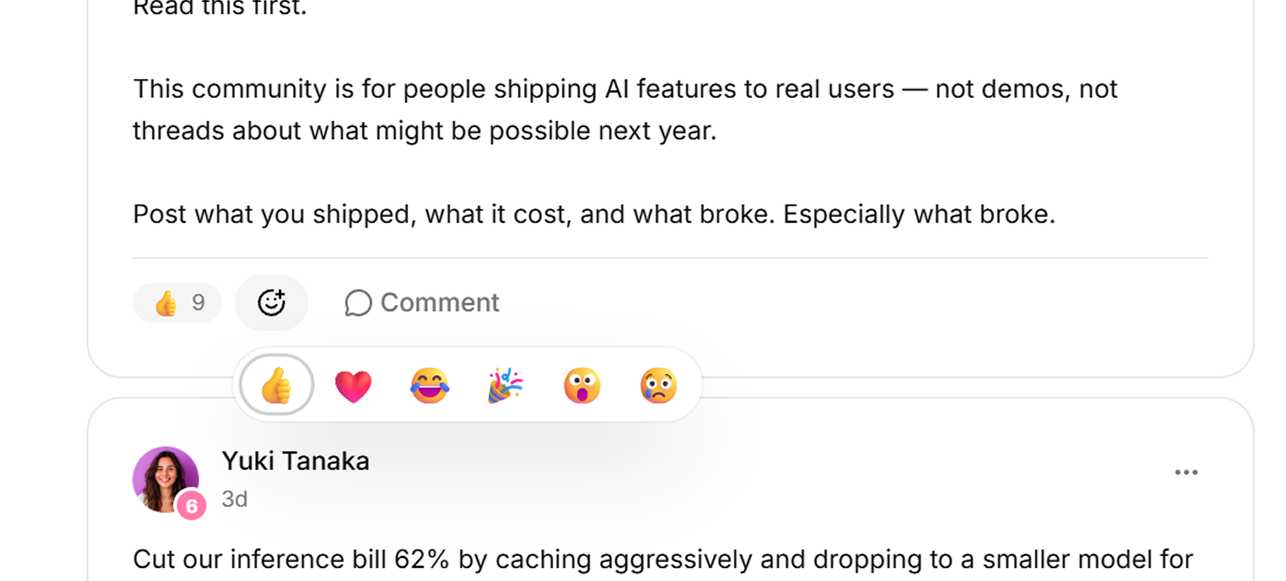
- Emoji reactions — A row of emoji reactions appears on every post and comment. Tap any emoji to add your reaction. Tap the same emoji again to remove it.
- Earning points — Every time another member reacts to your post or comment, you earn 1 point toward your community level. See Points & Leaderboards for more.
Polls
You can attach a poll to any post to gather opinions or make group decisions.
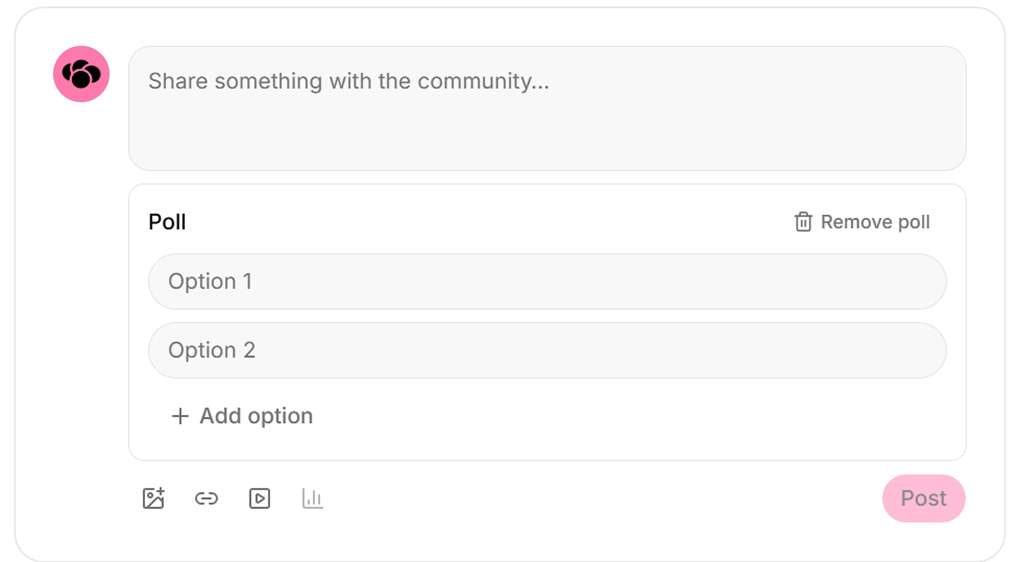
- While composing a post, click the Poll icon in the toolbar.
- Add your question as the post body and enter your answer options.
- Publish the post — members can immediately vote on the poll.
Votes are hidden until you, the creator, choose to reveal the results. This prevents early results from influencing later voters. To reveal results, open the poll post and click Reveal results.
Pinned posts
As the creator, you can pin any post to the top of the feed so it's the first thing members see when they visit.
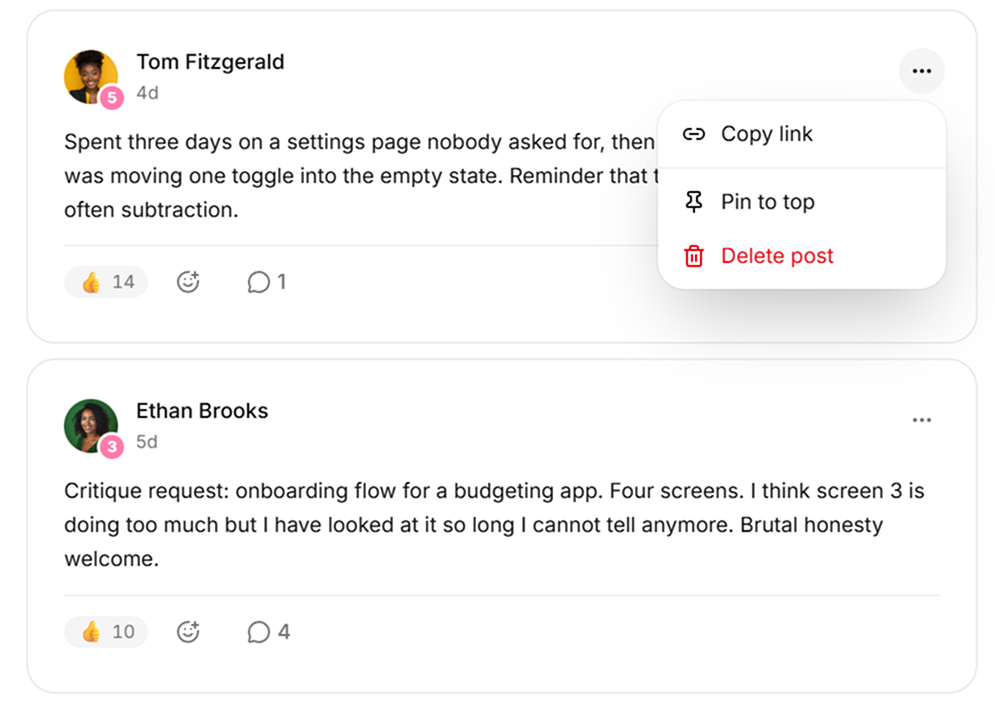
- Open the post's options menu (the three-dot icon) and select Pin post.
- Pinned posts display a 📌 pin indicator and stay at the very top of the feed, above all other content.
- You can only have one pinned post at a time. Pinning a new post automatically unpins the previous one.
Use your pinned post as a welcome message for new members. Include your community rules, a quick-start guide, and links to your best courses or resources. Update it seasonally with announcements, challenges, or featured content.
Moderation
Keeping your community safe and on-topic is your responsibility as the creator. Berrytap gives you the tools to act quickly.
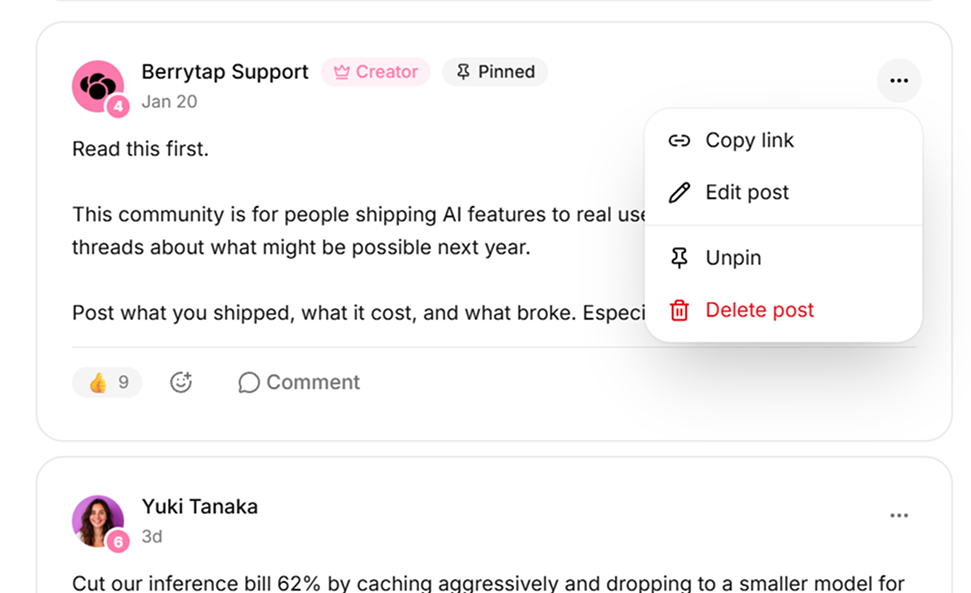
- Delete posts or comments — Open the options menu on any post or comment and select Delete. Deletion is immediate and permanent.
- Cancel a member's subscription — Go to Dashboard → Members, find the member, and select Cancel subscription. They retain access until the end of their current billing period.
- Remove a member — Select Remove member from the member's options menu. The member loses access to your community immediately.
All moderation actions are visible only to you — Berrytap does not send a public notification to the feed when you remove content or a member.