Add Lessons, Videos, and Downloadable Resources on Berrytap
Add rich-text lessons, upload or embed videos, attach downloadable resources, and track member progress through your Berrytap courses.
Lessons are the core unit of your course. Each lesson can include a written body, a video, and downloadable resources — giving you full flexibility to build the learning experience your members need. You manage all of this from inside any module in your course.
Adding a lesson
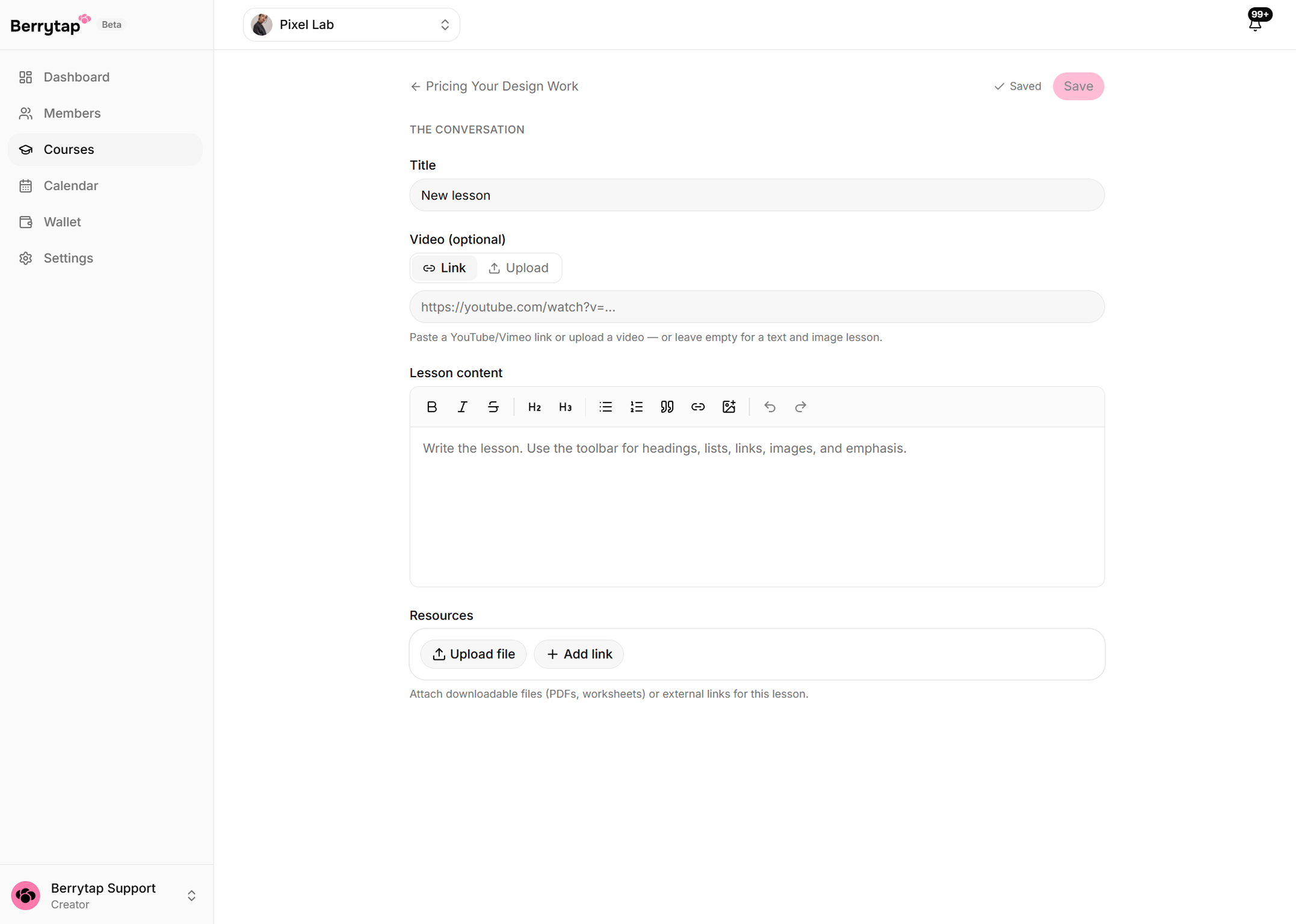
Inside a module, click Add Lesson to create a new lesson. Give it a descriptive title so members immediately know what they're about to learn. From there you can fill in three content areas:
- Body — a rich-text editor where you write the lesson content, embed images, format code blocks, and add callouts.
- Video — upload a video file or paste an external URL (see Video options below).
- Resources — attach files or add links for members to download or reference (see Resources below).
Video options
You have two ways to add video to a lesson:
1. Upload directly to Berrytap
Berrytap hosts your uploaded videos on its own video hosting for fast, reliable playback worldwide.
Click Upload Video
Inside the lesson editor, click Upload Video and choose a file from your computer.
Storage check
Your browser reads the file duration and checks it against your plan's remaining storage. If the upload would exceed your limit, you'll see an error before anything is sent.
Background upload
The upload runs in the background — you can keep editing other lessons while it processes.
Encoding completes
Once encoding finishes, the video becomes available in the lesson. Members will see the player as soon as they open the lesson.
Videos on paid lessons are served via signed links. Only members who have purchased or have membership access can play the video — it cannot be shared externally or hotlinked by anyone outside your community.
2. Embed a URL
If your video is already hosted on YouTube or Vimeo, paste the URL into the Video URL field. Berrytap embeds the video using the provider's own player — no upload or storage is used.
Resources
You can attach downloadable resources to any lesson to give members supplementary material:
- Files — upload PDFs, ZIPs, spreadsheets, slide decks, or any other file type. Members see a download button below the lesson video.
- Links — add URLs to external tools, articles, or reference pages. Links also appear in the resources section of the lesson.
Members can download files and open links directly from the lesson page without leaving the course.
Video storage limits
Your plan controls how much total video storage you have across all your courses.
| Plan | Stored Video |
|---|---|
| Free | 1 hour |
| Growth | 25 hours |
| Scale | Unlimited |
- A warning banner appears in your dashboard when you've used 80% of your storage.
- Uploads are blocked once you reach the limit — existing videos continue to play normally.
- Delete unused videos from lessons you've replaced or removed to free up space immediately.
See Plans & Pricing to compare plans and upgrade.
Deleting a video from a lesson removes it permanently and cannot be undone. The storage quota is freed immediately, but there is no way to recover a deleted video — make sure you have a local copy before deleting.
Member progress
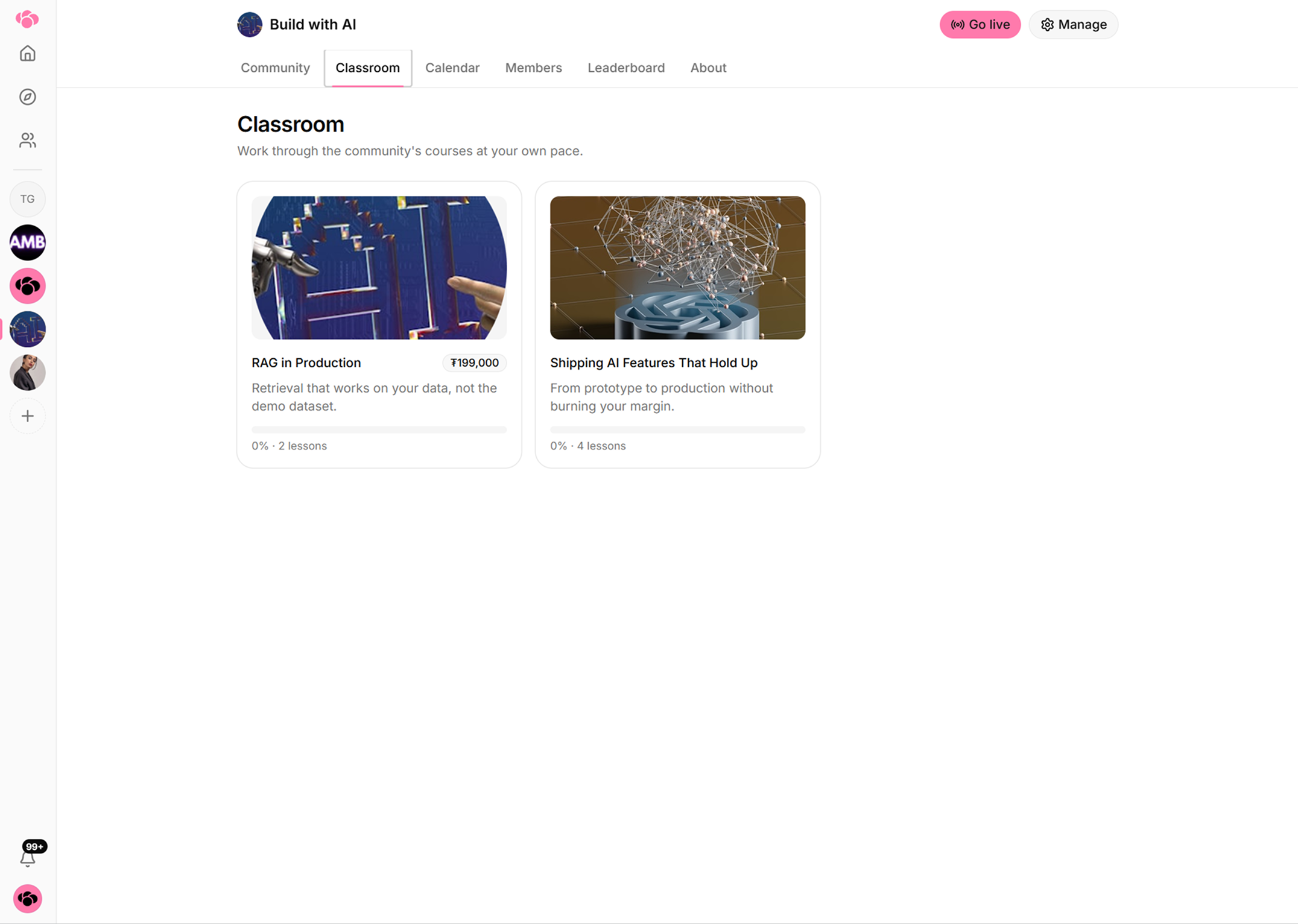
Berrytap automatically tracks which lessons each member has completed across your courses. A lesson is marked complete when the member finishes watching the video or manually clicks Mark as Complete. Each member's progress is shown as a percentage on the course card in their library.
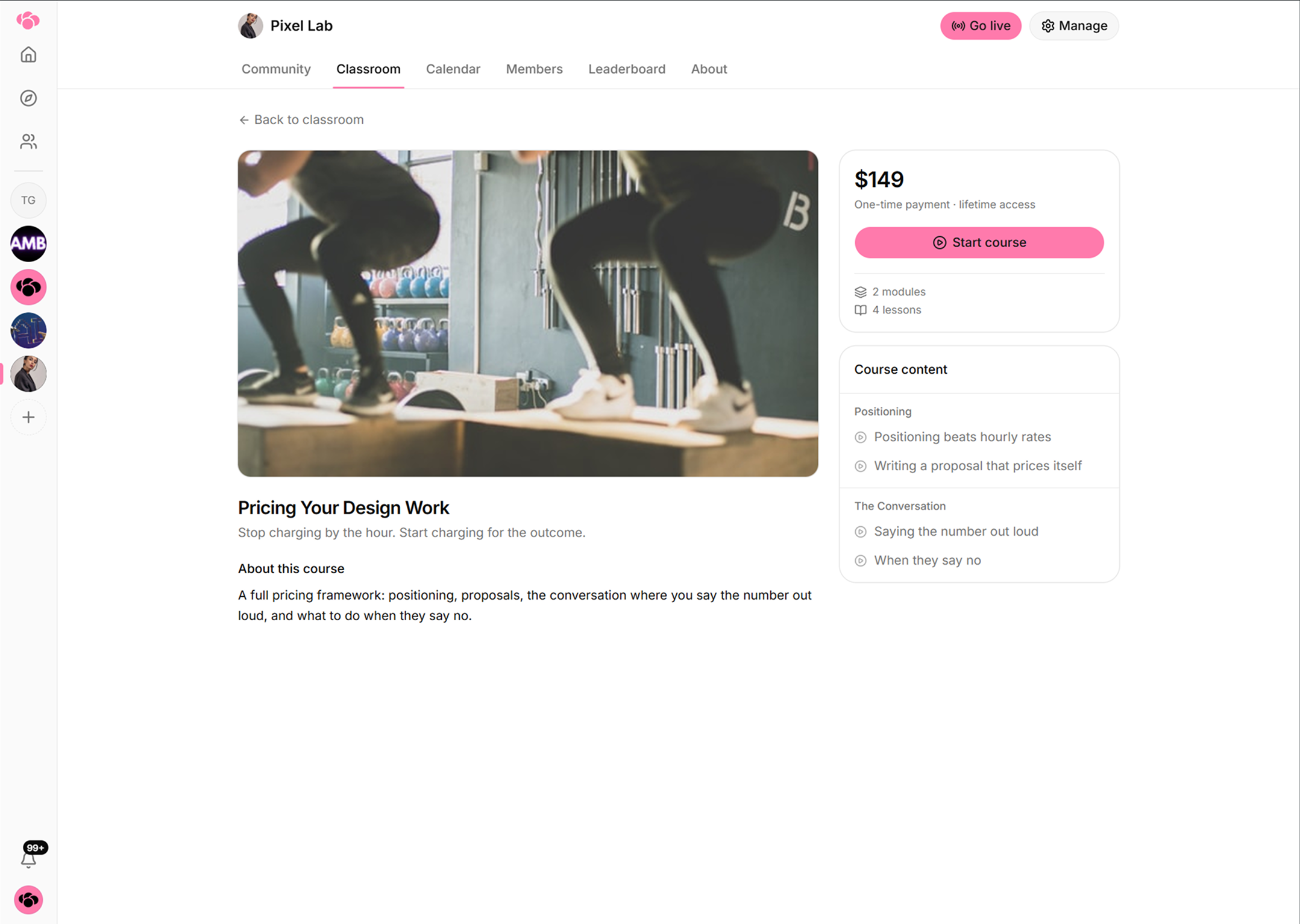
When a member completes every lesson in a course, they earn a completion badge for that course — a visible milestone that rewards their effort and encourages engagement in your community.